

HDDLife User Interface: Real-Time Storage Health at a Glance
Clarity and instant readability form the foundation of HDDlife. Unlike complex system diagnostics that overwhelm users with raw HEX tables and cryptic technical jargon, HDDlife translates S.M.A.R.T. telemetry into clear visual metrics: percentage-based health scores, performance bars, and color-coded temperature indicators.
Core Modes and UI Elements
1. Main Window: Health & Performance Metrics
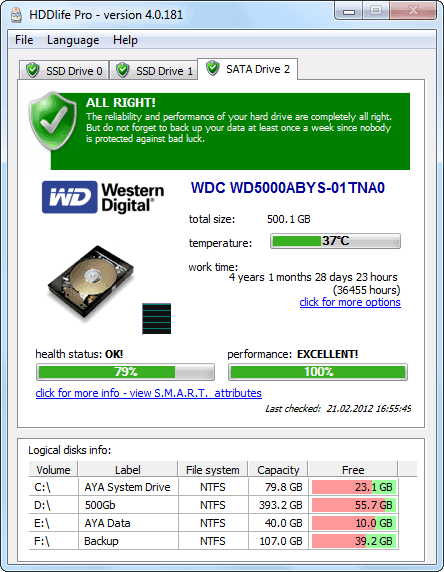
The primary HDDlife window displays a comprehensive status summary for every connected HDD and SSD:
- Health Level: Visual gauge with a percentage scale. Green indicates optimal condition, yellow flags reallocated sectors or wear, and red warns of imminent failure risks.
- Performance Level: Evaluates mechanical response or remaining SSD cell endurance.
- Operating Temperature: Real-time thermal status with color badges (blue for safe, orange/red for overheating).
2. SSD Health & Wear Level Status Monitoring
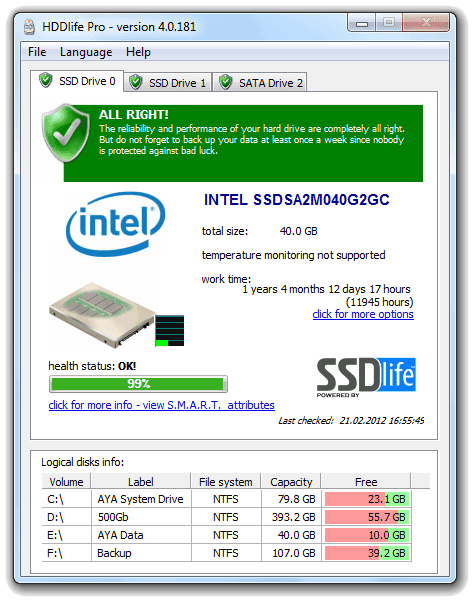
Solid-state drives rely on flash memory cells that degrade over time as write cycles accumulate. HDDlife features specialized monitoring specifically tuned for SSD architecture:
- SSD Wear & Lifespan Tracking: Displays the remaining cell endurance and estimated operational lifespan based on write activity.
- S.M.A.R.T. Telemetry for Solid-State Storage: Translates vendor-specific SSD health attributes (such as TRIM status, total gigabytes written, and spare block allocation) into a clear visual wear index.
- Multi-Drive Tab Navigation: Seamlessly switch between mechanical HDDs and fast SSDs within the same main window. (For dedicated standalone SSD monitoring without HDD features, check our specialized utility SSDlife).
3. Critical Failure & Warning State Modes
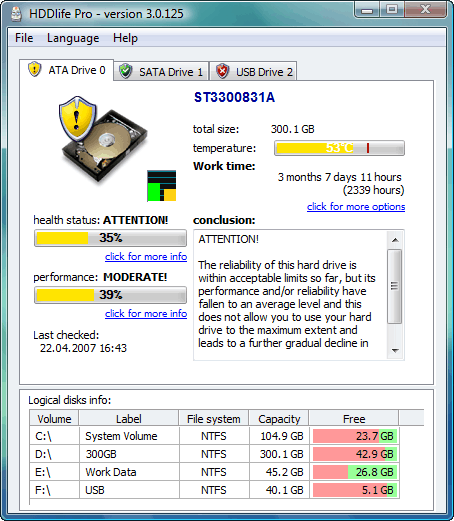
When drive parameters drop to dangerous thresholds, the HDDlife interface changes dynamically to demand immediate attention:
Warning State (Yellow): Indicates developing issues, such as occasional temperature spikes or non-critical S.M.A.R.T. attribute changes.
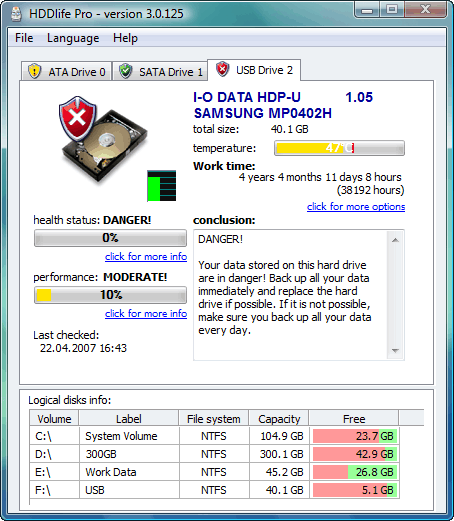
Critical State (Red): Displayed when a drive reaches a critical health level. HDDlife warns that the drive is in immediate danger of crashing, prompting users to stop heavy read/write operations and back up all critical files right away. You are advised to replace your hard drive as soon as possible.
4. System Tray & AnywhereView™ Explorer Integration
HDDlife operates quietly in the background without burdening system memory or interrupting your work:
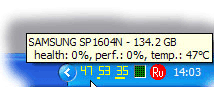
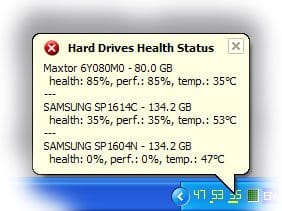
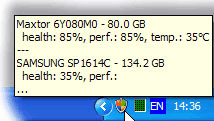
System Tray Icons: Shows continuous temperature and health badges directly in the Windows taskbar. Hovering your mouse over the icon displays a summary tooltip for active storage devices.

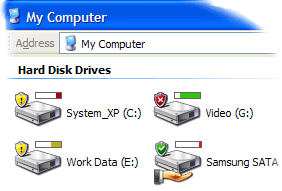
AnywhereView™ – monitoring the health of hard drives in any program´
The icon representing their health is displayed directly on the icons of the hard drives in all programs on your computer – from the My Computer window with the list of drives and to the “Open File” dialog box of any program – Word, Notepad, etc. You will never forget about the health of your hard drives and about the safety of your data!
´ (available only in the professional version (HDDlife Pro). For details see the comparison table.)
5. Proactive Alert Notification System
If HDDlife detects rapid temperature spikes, bad sector buildup, or critical SSD degradation, it displays an unobtrusive desktop notification pop-up. These warnings stay visible briefly before fading, ensuring you are notified of urgent risks without disturbing your workflow.
HDDlife Diagnostic Capabilities vs. Standard S.M.A.R.T. Tools
| Feature | HDDlife | Standard S.M.A.R.T. / Console Tools |
| Health & SSD Wear | Visual percentage (0–100%) & wear index | Raw HEX values and obscure vendor codes |
| Temperature Control | Continuous tray badge & overheat alerts | Requires manual diagnostic launches |
| Explorer Integration | Direct AnywhereView™ drive badges | None |
| Proactive Failure Risk Alerts | Automated pop-up warnings on critical events | None (drives crash without prior warning) |
| System Resource Impact | Lightweight background service | Manual tools or heavy system suites |
Protect Your Data with HDDlife Today
Don’t wait for unexpected drive failures, clicking noises, or sudden file corruption to compromise your valuable data. Download the free trial version of HDDlife and verify the health and wear status of your HDDs and SSDs in seconds!
You might find these blog posts interesting:
Free HDD Health Check Software 2026 – Beat Price Surge
Free HDD Health Check Software 2026: Protect Your Data from the Price Surge If you’ve…
Macrium Reflect X vs TrueImage: HDD & SSD Backup Test Review 2026
Introduction Despite the importance of monitoring HDD and SSD health with tools like HDDLife and…
Artificial Intelligence in HDD and SSD reliability analysis: New Horizons
AI in HDD and SSD reliability analysis: New Horizons In today’s world, artificial intelligence (AI)…
Hard Drive Temperature: What Is Normal – and When Is It Dangerous?
Hard Drive Temperature: What Is Normal – and When Is It Dangerous? Studies about hard…
 English
 Deutsch
 Français
 Español
 Italiano
 Português
 Português do Brasil